

There are few things in life more frustrating than a computer problem that makes absolutely no sense.
A few days ago, Google Chrome decided it no longer wanted to cooperate. It didn’t crash. It didn’t display an error message. It didn’t even completely stop working. Instead, it did something far more annoying.
Some websites worked. Some websites didn’t. And Chrome itself became painfully slow.
Canva eventually loaded. Facebook refused. Other websites acted like they had never heard of the internet.
Meanwhile, Microsoft Edge sat there looking smug and loading everything just fine. That’s when I knew this was going to be one of those days.
The Symptoms
At first, Chrome simply felt slow. Pages took longer to load than usual. Then certain websites stopped opening entirely.
Facebook was one of the biggest offenders. I would click the site, wait, stare at a blank screen, wait some more, and eventually give up. The strange thing was that not every website failed.
Some worked. Some didn’t.
That made the problem much harder to diagnose. If every website had failed, I would have assumed the internet connection was down. If Chrome had crashed, I would have assumed Chrome was corrupted.
Instead, I was stuck in the frustrating middle ground where nothing made sense.
The First Test
One of the easiest troubleshooting steps is to try another browser. So I opened Microsoft Edge. Every website that was failing in Chrome loaded immediately in Edge.
Facebook? Worked. Other problem websites? Worked. This was actually good news. It meant my internet connection wasn’t the problem.
The websites themselves weren’t down. The issue was somehow connected specifically to Chrome.
The Usual Suspects
Like most people, I immediately blamed browser extensions. Extensions are little add-ons that can block ads, save passwords, check grammar, and do all sorts of useful things.
They can also break things. So I disabled every extension. Nothing changed.

Next Stop: Reset Chrome
Chrome includes a feature that restores many settings to their default values.
I reset Chrome. Still broken. Facebook continued refusing to load. At this point I was becoming convinced the computer was possessed.

Could It Be Malware?
When technology behaves strangely, malware is always worth considering. I ran a malware scan.Everything came back clean.Good news for my computer. Bad news for my troubleshooting efforts. The mystery continued.
Clearing the Plumbing
Next came a series of network-related fixes. I flushed the Windows DNS cache. I cleared Chrome’s internal DNS cache.
I flushed Chrome’s socket pools. If those phrases sound like something a plumber would say, you’re not entirely wrong.
DNS is basically the internet’s phone book. Sometimes clearing it can fix websites that refuse to load. Unfortunately, it didn’t solve my problem.
The Fresh Profile Test
Sometimes a Chrome user profile becomes corrupted. Creating a brand-new profile is often a quick way to test that theory.
I created a fresh Chrome profile. No extensions. No custom settings. A completely clean slate. Facebook still wouldn’t load.
At this point I was running out of ideas.
The Unexpected Culprit
Finally, we stumbled onto a setting most people have never heard of.
QUIC.
No, that’s not a typo.
QUIC is a networking technology Google developed to make web browsing faster.
The idea is good. The reality is that sometimes it doesn’t play nicely with certain websites, networks, routers, or internet providers.
We disabled QUIC. Chrome restarted. Facebook loaded instantly. The other problem websites loaded instantly.
The mystery was solved.
The Lesson
Technology problems don’t always announce themselves clearly. Sometimes the browser isn’t completely broken.
Sometimes the internet isn’t completely broken. Sometimes everything works just enough to make troubleshooting difficult.
The biggest lesson from this experience is simple: When a website won’t load, always test it in another browser.
That one simple step can save hours of frustration by helping you determine whether the problem is the website, your internet connection, or the browser itself. In my case, Chrome wasn’t entirely broken. It was just having an argument with a networking feature called QUIC.
And for one very long afternoon, Chrome was determined to win that argument.
What to Try When Chrome Gets Slow or Refuses to Load Certain Websites
Before you panic, try this simple test:
Step 1: Check the Same Website in Another Browser
- Open Microsoft Edge, Firefox, or another browser.
- Go to the same website that will not load in Chrome.
- See what happens.
If the site also fails in the other browser, the problem may be your internet connection, the website itself, or your computer.
If the site works in Edge but not Chrome, the problem is probably inside Chrome.
That was my first big clue.
Step 2: Turn Off Chrome Extensions
Extensions are little add-ons for Chrome. They can be helpful, but they can also break websites.
- Open Chrome.
- Click the three dots in the top-right corner.
- Choose Extensions.
- Click Manage Extensions.
- Turn off every extension.
- Close Chrome.
- Reopen Chrome and try the problem website again.
If the site works, turn extensions back on one at a time until you find the troublemaker.
Step 3: Reset Chrome Settings
This puts many Chrome settings back to normal without uninstalling Chrome.
- Open Chrome.
- Click the three dots in the top-right corner.
- Choose Settings.
- Click Reset settings.
- Choose Restore settings to their original defaults.
- Click Reset settings.
- Restart Chrome.
This may disable extensions and clear some temporary data, but it should not erase your bookmarks or saved passwords.
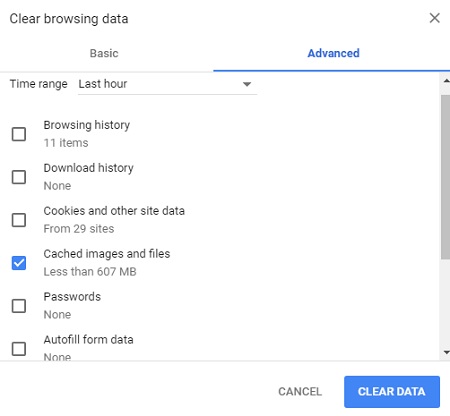
Step 4: Clear Browsing Data
Old cookies and cached files can sometimes cause certain sites to load badly or not at all.
- Open Chrome.
- Press Ctrl + Shift + Delete.
- Change the time range to All time.
- Check:
- Cookies and other site data
- Cached images and files
- Click Clear data.
- Restart Chrome.
Warning: clearing cookies may sign you out of websites.
Step 5: Run a Malware Scan
Sometimes unwanted software can interfere with browsers.
- Open Windows Security.
- Click Virus & threat protection.
- Choose Scan options.
- Select Full scan.
- Click Scan now.
You can also use a trusted malware scanner if you already have one installed.
Step 6: Flush the Windows DNS Cache
DNS is like the internet’s address book. Sometimes the computer hangs onto bad directions.
- Click the Start button.
- Type cmd.
- Click Command Prompt.
- Type this:
ipconfig /flushdns
- Press Enter.
- You should see a message saying the DNS resolver cache was flushed.
- Restart Chrome and try again.
Step 7: Clear Chrome’s Own DNS Cache
Chrome keeps its own DNS information, too.
- Open Chrome.
- Type this into the address bar:
chrome://net-internals/#dns
- Press Enter.
- Click Clear host cache.
- Restart Chrome.
Step 8: Flush Chrome’s Socket Pools
This clears some of Chrome’s active connection information.
- Open Chrome.
- Type this into the address bar:
chrome://net-internals/#sockets
- Press Enter.
- Click Flush socket pools.
- Restart Chrome.
Step 9: Try a New Chrome Profile
A Chrome profile can sometimes become corrupted.
- Click your profile picture in the top-right corner of Chrome.
- Choose Add Chrome profile.
If you do not see that option:
- Click your profile picture.
- Choose Manage Chrome profiles.
- Look for Add or Add profile.
- Create a temporary test profile.
- Do not add extensions.
- Try the problem website.
If the site works in the new profile, your original profile may be the problem.
If it still does not work, keep going.
Step 10: Disable QUIC Protocol
This was the fix in my case.
QUIC is a Chrome networking feature meant to speed things up. Unfortunately, sometimes it does the opposite and prevents certain sites from loading.
- Open Chrome.
- Type this into the address bar:
chrome://flags/#enable-quic
- Press Enter.
- Find Experimental QUIC protocol.
- Change it from Default to Disabled.
- Click Relaunch.
- Try the website again.
In my case, Facebook immediately started loading after this step.
Step 11: Try the Problem Site Again
After each fix, test the website.
Do not change ten things at once if you can avoid it. Try one fix, test the site, then move on.
That way, when something finally works, you know what solved the problem. In my case, the winner was QUIC.
Chrome was not broken. My internet was not broken. Facebook was not broken.
Chrome was just trying to be fancy, and fancy broke the plumbing.
What in the World Is QUIC? (And Why Turning It Off Fixed Chrome)
After several hours of troubleshooting, the solution to my Chrome problem turned out to be something called QUIC.
No, that’s not a typo. No, I had never heard of it before.
And yes, turning off a feature designed to make the internet faster somehow fixed my browser.
Welcome to technology.
First Things First: What Is QUIC?
QUIC (pronounced “quick”) is a networking technology developed by Google.
Its entire purpose is to make websites load faster. That sounds wonderful. Who doesn’t want faster websites?
The basic idea is that QUIC creates a more direct and efficient conversation between your browser and a website.
Think of it like this:
Normally, visiting a website is a little like calling a business.
Your computer says:
“Hello, is this Facebook?”
Facebook replies:
“Yes.”
Your computer says:
“Can we talk securely?”
Facebook replies:
“Yes.”
Your computer says:
“Great, here’s what I need.”
The website finally starts sending information.
QUIC was designed to skip some of that back-and-forth and get to the good stuff faster.
In theory, it’s like walking into a restaurant where your favorite meal is already waiting at the table.
So Why Did It Break Things?
That’s the million-dollar question. The problem isn’t usually QUIC itself.
The problem is that the internet is held together with equal parts engineering brilliance, duct tape, and crossed fingers.
Between your browser and a website there might be:
- Your home router
- Your internet provider
- Security software
- Firewalls
- Corporate networks
- Public Wi-Fi equipment
- Various pieces of networking equipment you don’t even know exist
Every one of those devices has to understand what Chrome is trying to do. Most of the time they do.
Sometimes they don’t. When that happens, Chrome and the website may start speaking different languages.
One side says: “Let’s use QUIC.”
The other side says: “I have no idea what you’re talking about.”
And suddenly websites stop loading.
Why Did Some Websites Work But Not Others?
This was the part that drove me crazy.
Canva worked. Facebook didn’t.
Other websites were hit or miss. That actually makes sense when you understand how QUIC works.
Not every website uses the same servers. Not every website uses the same networking equipment.
Not every website handles QUIC the same way.
Imagine driving around town.
One bridge is closed.
Most roads still work.
You only discover the problem when you try to cross that particular bridge.
That’s what happened here.
Chrome could still reach some destinations.
It simply couldn’t reach others.
Why Did Edge Work?
This was the clue that finally pointed us in the right direction.
Microsoft Edge is built on the same Chromium engine as Chrome.
They’re cousins.
But they don’t always handle networking features exactly the same way.
If a website works in Edge but not Chrome, that usually tells you the problem isn’t:
- Your internet connection
- The website itself
- Your computer
It suggests the problem is something unique to Chrome.
That’s exactly what happened.
Should You Turn QUIC Off Permanently?
Probably not unless it’s causing problems. Most people never need to touch this setting.
If Chrome is working normally, leave it alone. But if you encounter a situation where:
- Chrome is slow
- Certain websites refuse to load
- Other browsers work fine
- You’ve already tried the usual fixes
Then disabling QUIC is absolutely worth trying.
It takes less than a minute and can save hours of frustration.
The Bigger Lesson
One thing I’ve learned after years of writing about technology is that newer doesn’t always mean better.
Technology companies are constantly building features that promise:
- Faster browsing
- Smarter software
- Better performance
- Improved security
Most of the time those improvements work exactly as intended.
Sometimes they don’t. When they don’t, the solution can be surprisingly simple.
In my case, Chrome wasn’t infected. The internet wasn’t down.
Facebook wasn’t broken. My computer wasn’t dying.
Chrome was simply trying very hard to be clever.
And as every parent, teacher, and grandparent already knows, sometimes being clever creates more problems than it solves.
So the next time a browser starts acting strangely, remember this:
The fix might not be replacing your computer. It might not even be reinstalling the browser.
Sometimes all you have to do is tell Chrome to stop trying so hard.