

There are two ways to receive text messages on your phone. You can message by SMS (short message service) text message or by using a messaging app.
SMS messages are sent to other phone numbers via your 3G or 4G connection. Many phone plans have a limit to the number of texts that can be sent per month.
You can also use various messaging apps to send texts. Messaging apps are downloaded from the app store for your phone. These messages can only be sent to other people who also have the app installed. If you have your smartphone connected to your home WiFi, you can send messages without using any of the allotted data for your monthly wireless plan.
If you aren’t familiar with text messaging, you might wonder how it differs from email. Texts are traditionally shorter. The maximum length of an SMS is 918 characters, but anything over 160 characters will be broken up into messages of 153 characters.
Text messages are often treated like just like a conversation with a lot of back and forth often happening in real time.
Whereas an email can often wait until the next day, people will text when they need a more immediate response. Which is also something to consider if you’re thinking about sending a text at 3 in the morning.
To send a text message on your phone, you’ll need to open your text message app. Here’s what the icon looks like on an Android phone.

And here’s what you’ll see on an iPhone.

Just tap the message icon to open the app. To compose a message, tap on the icon that looks like a pen. Here’s what it looks like on an Android phone.

Now you can type in a number or chose a contact.

You can also choose a previous conversation with that person and just tap on that.

Notice that you can open previous exchanges with someone and scroll back over your recent conversations.

Tap in the box that reads “Type a message” and you’ll get an on screen keyboard. You can also tap the microphone icon to dictate your message instead of typing.

When you’re satisfied, you can hit the little Send arrow.
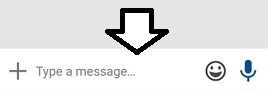
To add an image, tap the + sign. Tap the camera icon to take a new photo or select Gallery to attach a photo already on the phone.

You can also tap the smiley face Icon to add stickers and emoji (such as smiley or frowny faces) to your messages.

In part 2 of this article, I’ll look at how you can send messages using your iPhone.