Here’s a case where working through an issue in my day-to-day work makes for a great tech tip. I was attempting to share some OneDrive files with a fellow writer and she was having an issue accessing them. After some failed attempts at troubleshooting, I asked what kind of computer she was using. Guess what? She was using a Mac.
OneDrive is completely integrated into Windows 10, but to use it optimally on a Mac, you’ll need to install the OneDrive app. Fortunately, the app is free and available from the Mac app store. Here’s how to get it:
Clip the App Store icon on your Mac.

Search for OneDrive and then click on the result.

Click Get. (If you haven’t set up your Apple ID yet, you’ll need to follow the easy steps to register.)

Then Install App. Once installed, open the app.

Sign in with your Microsoft account.

Choose where you want to put your OneDrive folder.

Just click where you want to put it and click on Choose this location.

Now, choose the files to sync. Synced files will be saved both on your Mac and in the cloud on OneDrive.

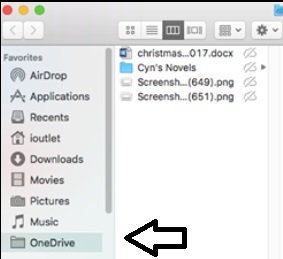
From now on, when you open Finder, you’ll see OneDrive there like any other file.