

We’ve been talking about Windows Sticky Notes lately and I thought I’d show you the dark mode.
Here’s what the notes look like in light mode:

You can choose from a variety of pastel colors.

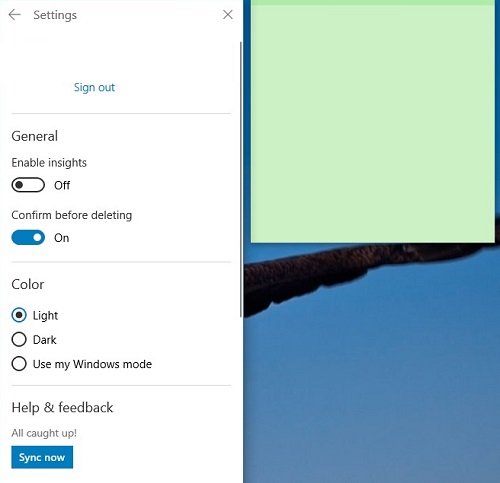
To switch to dark mode, click the three dot icon at the top of your note, select Notes list, and click the settings icon in your note list.

Under Color, choose either Dark or Use my Windows mode (if you use dark mode) Choosing Use my Windows means the appearance will change depending on whether you use light or dark modes for Windows 11. Signing in or out of the account has no bearing on the color, unless your notes are synced between devices.
Once you switch to dark, you don’t have the color variety. Notes are uniformly dark gray with a colored strip at the top.

I can’t even find Sticky Notes in my Windows 10 computer and it’s heartbreaking!
I have no idea why dark mode makes the sticky notes all uniformly dark grey instead of, y’know, darkened shades of the colors that are present